




Use one of the methods below to activate Windows 11 with your product key.
Method 1: Activate through Windows Settings
Activate Windows 11 directly from the Settings app.
- Open Settings. Open Settings on your Windows 11 device.
- Go to Activation. Go to System → Activation.
- Change product key. Click Change next to Change product key.
- Enter your key. Enter your 25-character Windows 11 product key.
- Continue. Click Next.
- Activate Windows. Select Activate.
- Check confirmation. Once completed, Windows will show Windows is activated.
Method 2: Activate using Command Prompt (CMD)
You can also activate Windows 11 using Command Prompt with administrator rights.
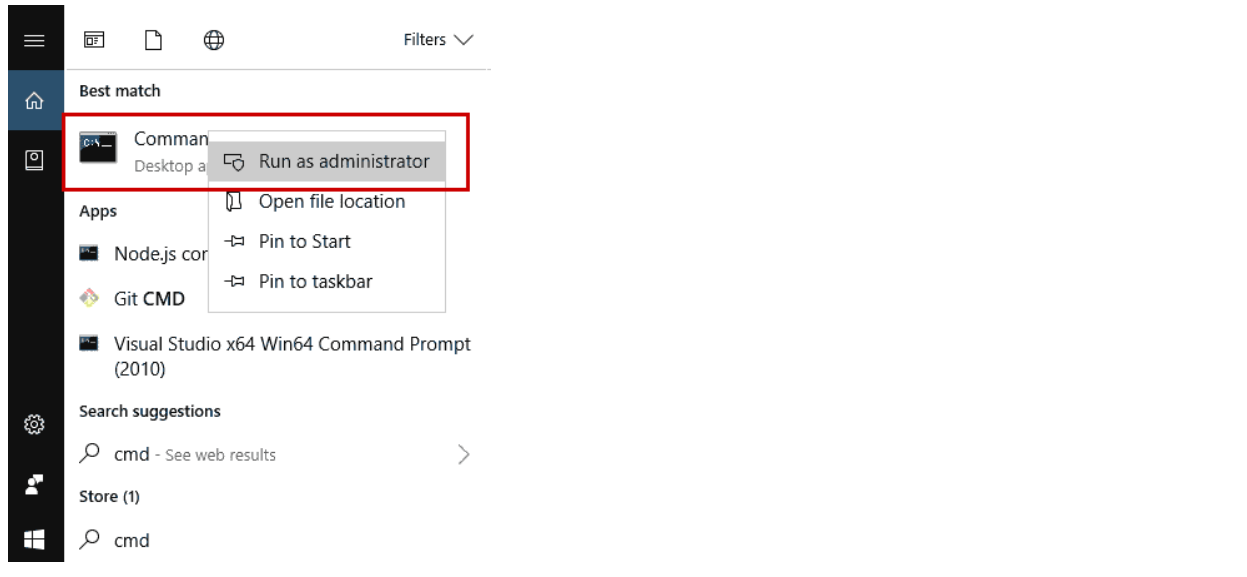
- Open Command Prompt. Click the Start button and type CMD.
-
Run as administrator. Right-click Command Prompt and select Run as administrator.
-
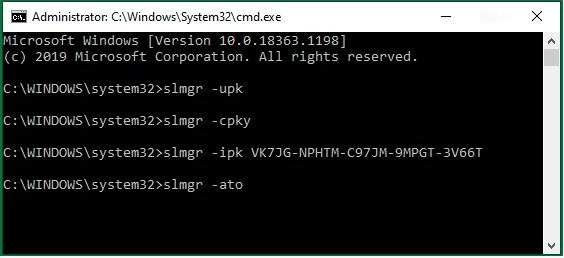
Install your product key. Install your product key by entering the following command. Replace XXXXX-XXXXX-XXXXX-XXXXX-XXXXX with your Windows 11 product key.
slmgr /ipk XXXXX-XXXXX-XXXXX-XXXXX-XXXXX -
Activate online. After the product key has been installed successfully, enter this command.
slmgr /ato -
Check activation status. Wait a few seconds for Windows to connect to Microsoft's activation servers. To check the activation status, enter this command.
slmgr /xpr -
Confirm activation. If activation was successful, Windows will confirm that the system is permanently activated.
Important: Make sure your product key matches the installed Windows 11 edition, for example Windows 11 Home or Windows 11 Pro.
Activation error: If you encounter an activation error, please contact our support team and provide the displayed error code. Email: [email protected]