




Search FAQ
Mog Station Key Activation (FINAL FANTASY XIV)
FINAL FANTASY XIV codes for Windows, Mac and Steam are registered on the Mog Station with your Square Enix Account. Follow the section that matches the code you bought.
Register the game on a new service account
Use these steps if you are new to FINAL FANTASY XIV or want to start on a new service account.
Open Mog Station1Log in to Mog Station
Log in to the Mog Station with your Square Enix Account. If you do not have one, register a new Square Enix Account first.
2Add a new service account
Select + Add New Service Account. Only do this if you want to play on a new service account; characters cannot be moved between service accounts.
3Enter your registration code
Enter your registration code in the Enter Code field. Then check Accept the User Agreement and select Next.
4Confirm the entitlement
Review the entitlement shown and select Next. This completes the registration and cannot be undone. Install the game and log in with the same Square Enix Account.
Register an expansion or Complete Edition on an existing account
Use these steps to add a code to the service account you already play on.
1Choose your service account
Log in to the Mog Station. If you have several service accounts, select the one you want to use and choose Use This Service Account.
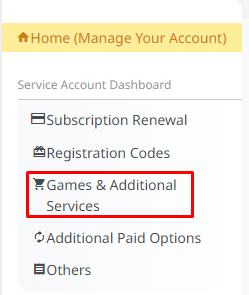
2Open Games & Additional Services
Select Games & Additional Services in the menu on the left.
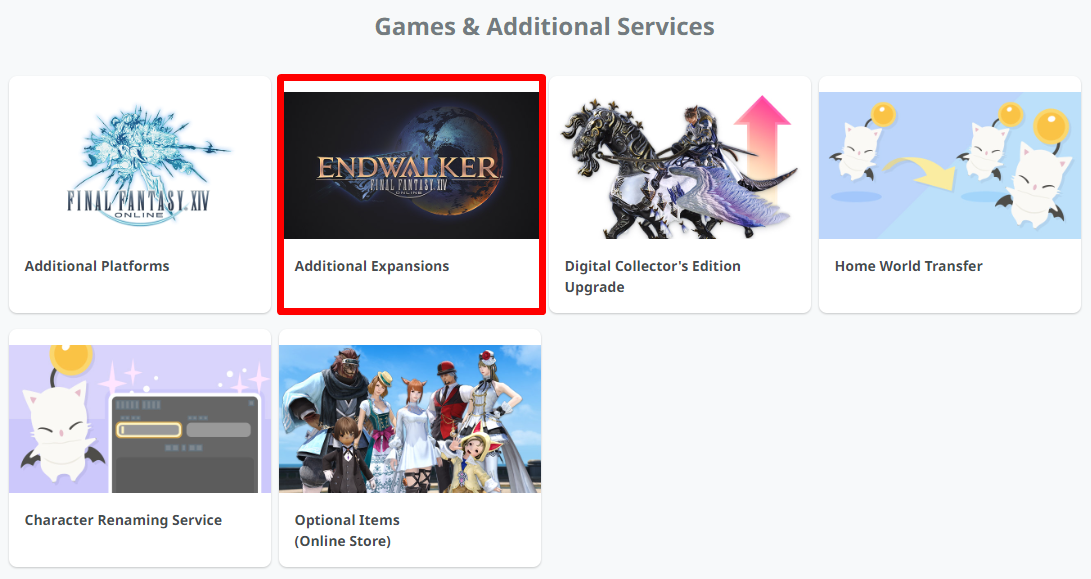
3Select Additional Expansions
Select Additional Expansions.
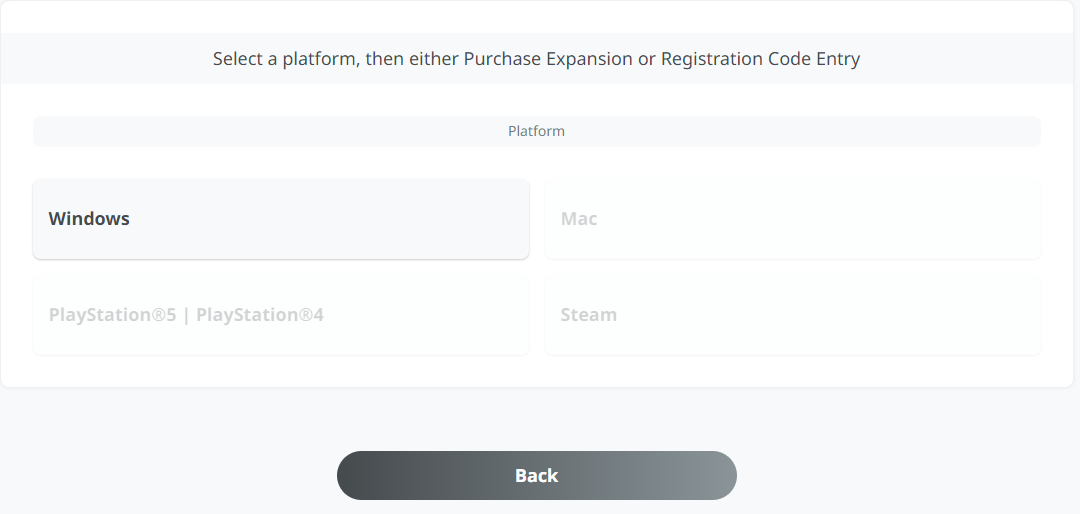
4Select your platform
Select the platform the code is for, for example Windows, Mac or Steam.
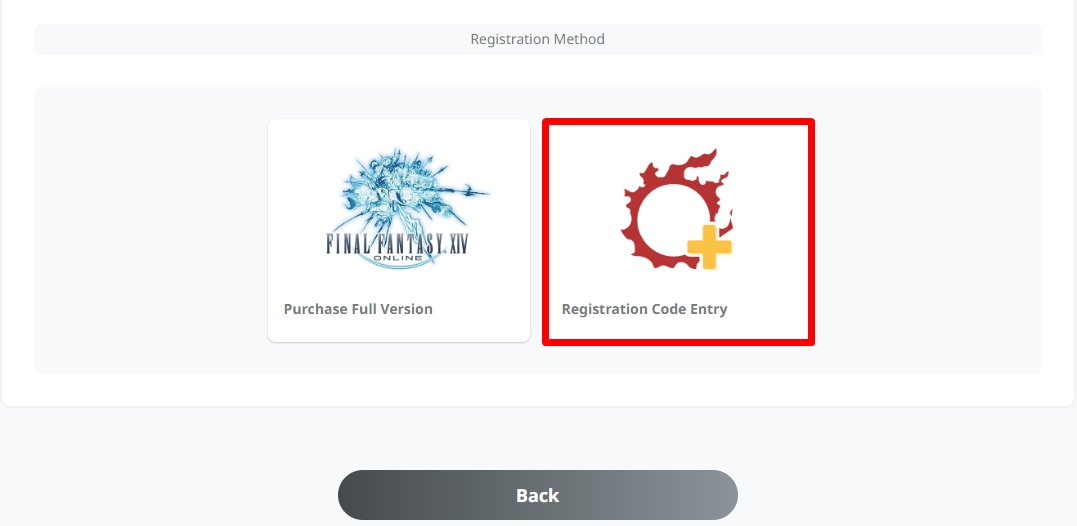
5Enter the code
Select Registration Code Entry, enter your code, select Next and follow the instructions on screen.
Add a Game Time Card
Game Time Cards extend your subscription.
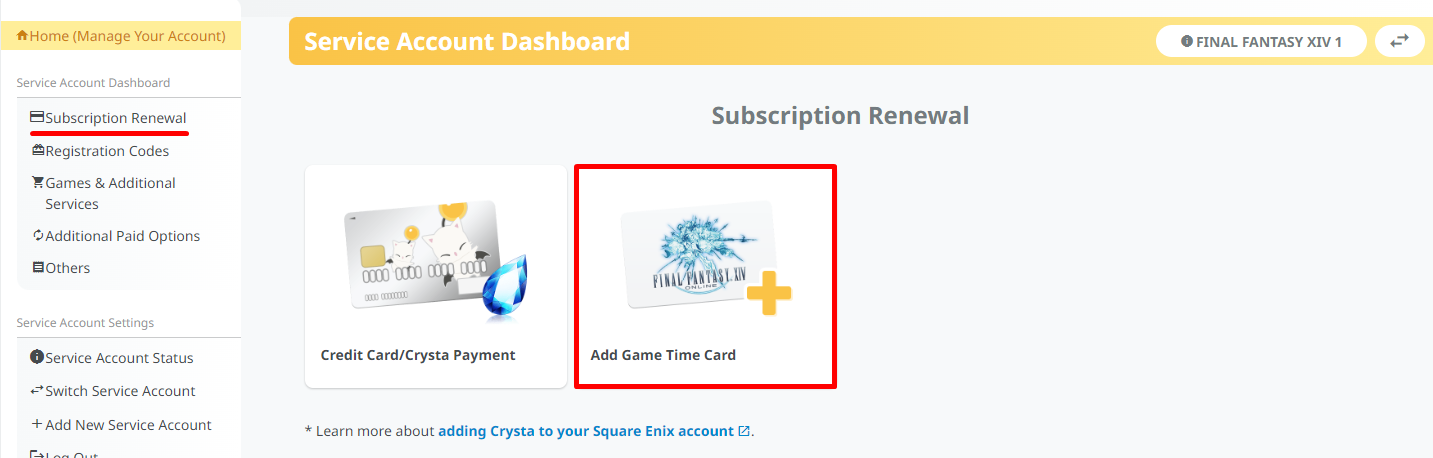
1Open Add Game Time Card
Under Subscription Renewal, select Add Game Time Card.
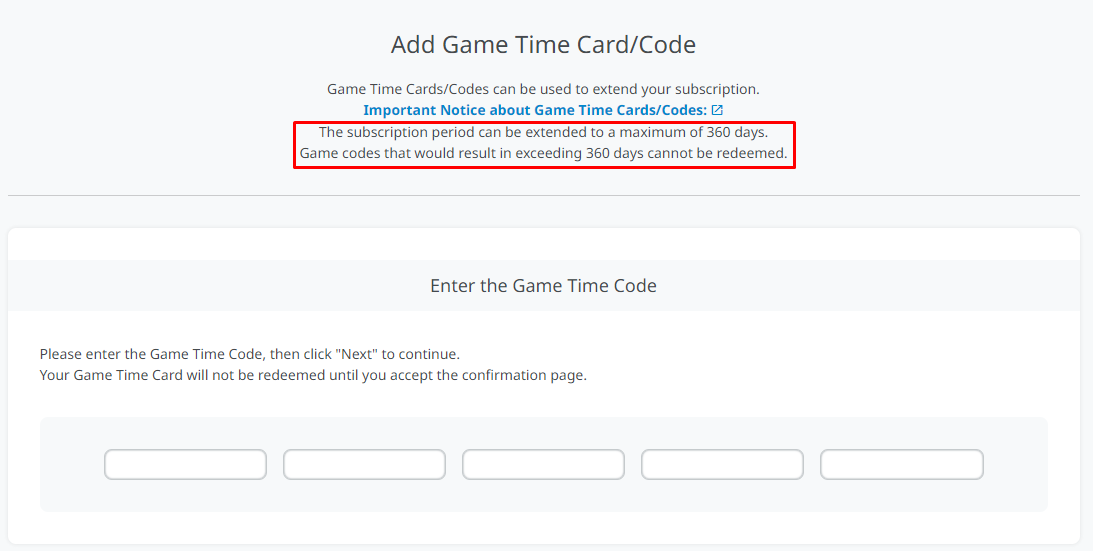
2Enter the Game Time Code
Enter the code and select Next, then confirm the details and select Next again.
Redeem an item code
In-game item codes are also redeemed on the Mog Station.
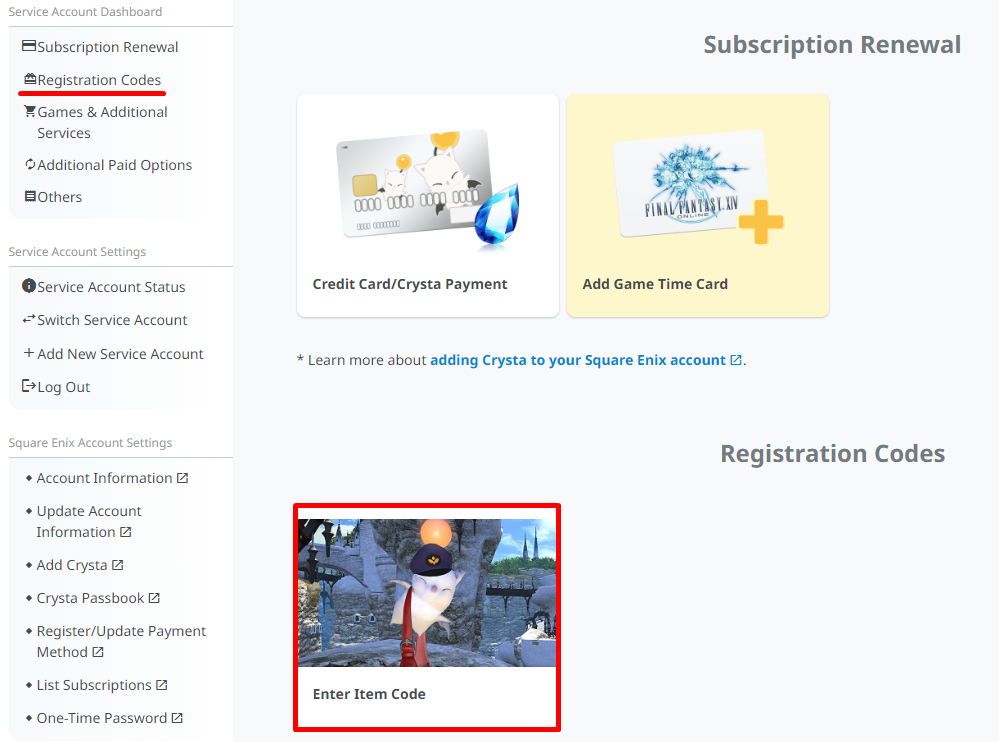
1Open Enter Item Code
Under Registration Codes, select Enter Item Code.
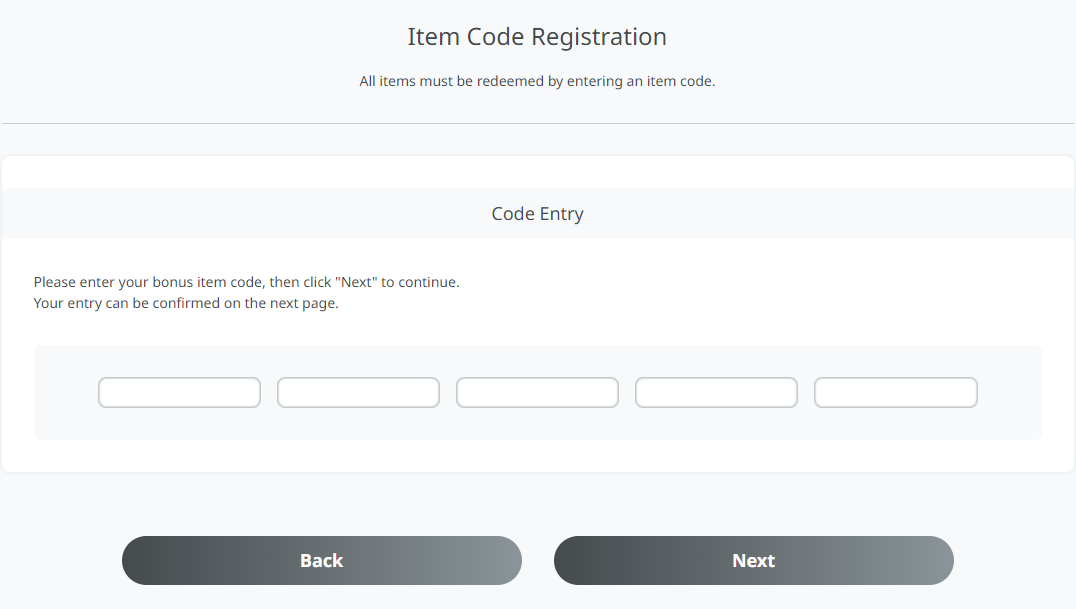
2Enter the item code
Enter the code, select Next and follow the instructions on screen.
Important to know
Keep these points in mind.
1Windows, Mac and Steam
On Windows or Mac you can also enter the registration code when you first launch the game. Windows and Steam codes are not interchangeable, and a Steam service account must be played through Steam.
2Expansions need the base game
You must have A Realm Reborn registered on the same platform before you can register an expansion.
3Subscription limit
A subscription can be extended to a maximum of 360 days. A Game Time Card that would exceed this cannot be redeemed.